Keyword Page
The Keyword Page helps you analyze a specific Spotify keyword in one place. Use it to review the top ranking playlists for a term, compare keyword metrics, discover related opportunities, and dig into Content Analysis for the playlists already ranking around that keyword.
Open a Keyword Page
Go to Keyword Search.
Click any keyword from the results.
Or go directly to
/seo/keyword/[keyword]/[market].
For example, /seo/keyword/workout/us opens the keyword page for the term workout in the US market.
How the page is organized
The Keyword Page has three main tabs:
Playlists: View the top 50 playlists ranking for this keyword, with Position History and Genre Alignment data
Metrics: Review keyword-level metrics and badge assessments
Similar Keywords: Discover related keywords and variations
Inside the Playlists tab, you can switch between:
Top 50: The main rankings table
Content Analysis: Overlap analysis across ranking playlists
Keyword Search on mobile
On the Keyword Search page, the search bar stays pinned below the floating header while the keyword filters scroll with the page. This lets you keep the search input visible while reviewing results on a smaller screen.
For more about the mobile header and drawer, see Mobile Navigation and Layout.
Use the Top 50 view
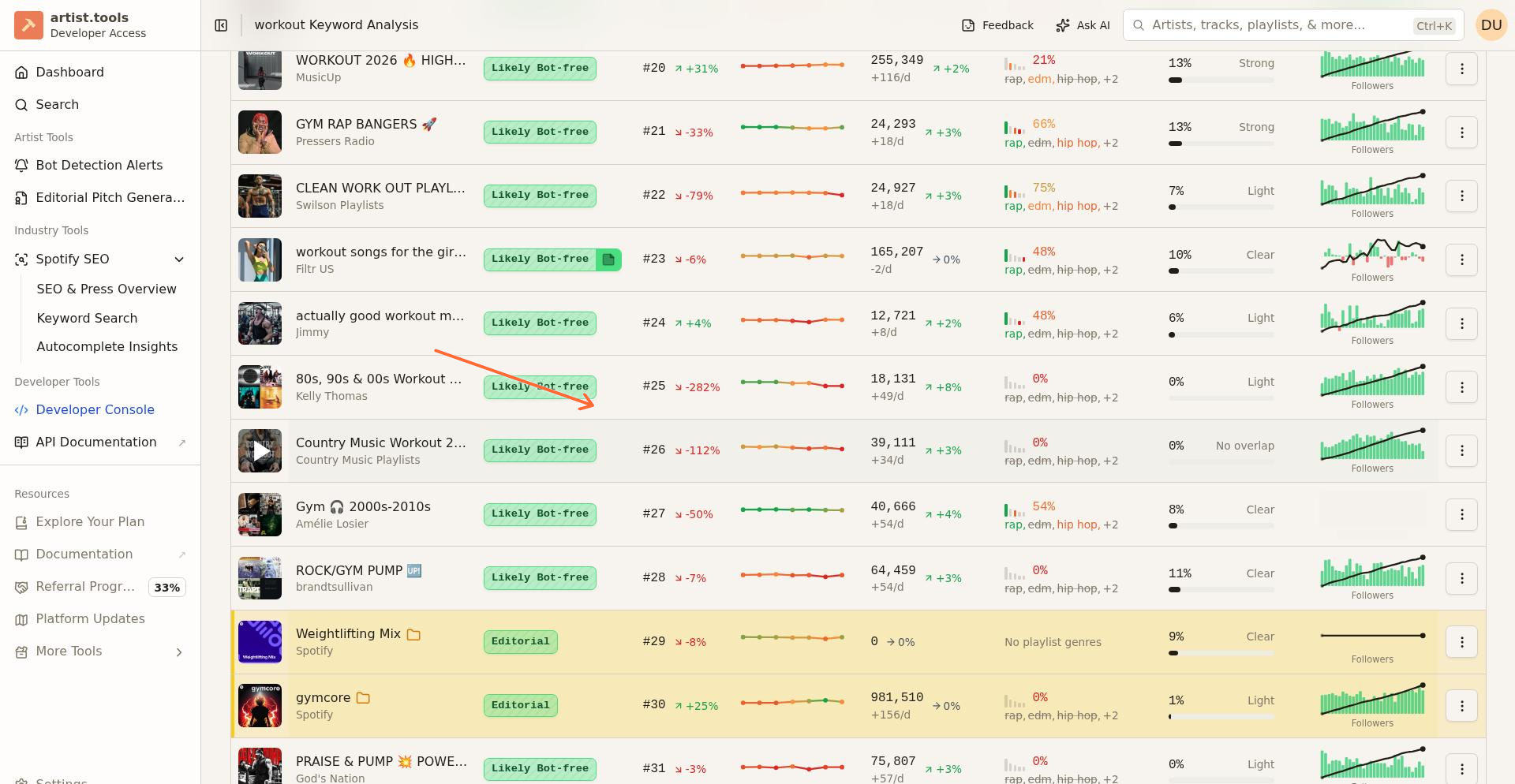
The Top 50 tab shows which playlists currently rank for the keyword. Use it when you want to inspect individual playlists, compare likely competitors, or decide whether a keyword is worth targeting.
Table columns
The rankings table displays:
Playlist: Name and follower count of the ranking playlist (click to open its detail page)
Position: Current ranking position (1-50) in Spotify search for this keyword
Position History: Visual sparkline showing recent ranking movement with color-coded bands
Genre Alignment: Percentage showing how well the playlist's genres match keyword demand
Last Updated: When the ranking data was last refreshed
Understanding Position History colors
The Position History sparkline uses color bands to quickly communicate ranking strength:
Green (positions 1-10): Top-tier rankings — the playlist appears near the top of search results
Yellow-green (positions 11-20): Strong rankings — still visible on the first page of results
Orange (positions 21-35): Weakening — the playlist is slipping in visibility
Red (positions 35+): Weak — the playlist ranks near the bottom of tracked results
Understanding Genre Alignment
Genre Alignment measures how well a playlist's curation matches the genre demand of this keyword. The tooltip shows the percentage of keyword genre demand that matches the playlist's genres.
High alignment (e.g., 85%+): The playlist curates the genres people are searching for — good fit for this keyword
Medium alignment (e.g., 50-84%): Partial match — the playlist has some relevant genres but may be missing key ones
Low alignment (e.g., below 50%): Genre mismatch — the playlist may be ranking but isn't well-aligned with search intent
The column also shows up to 3 genre labels with Matched or Missing indicators, helping you quickly see which genres the playlist has versus which are in demand.
Use the Metrics tab
Switch to Metrics when you want a higher-level view of the keyword's supporting data.
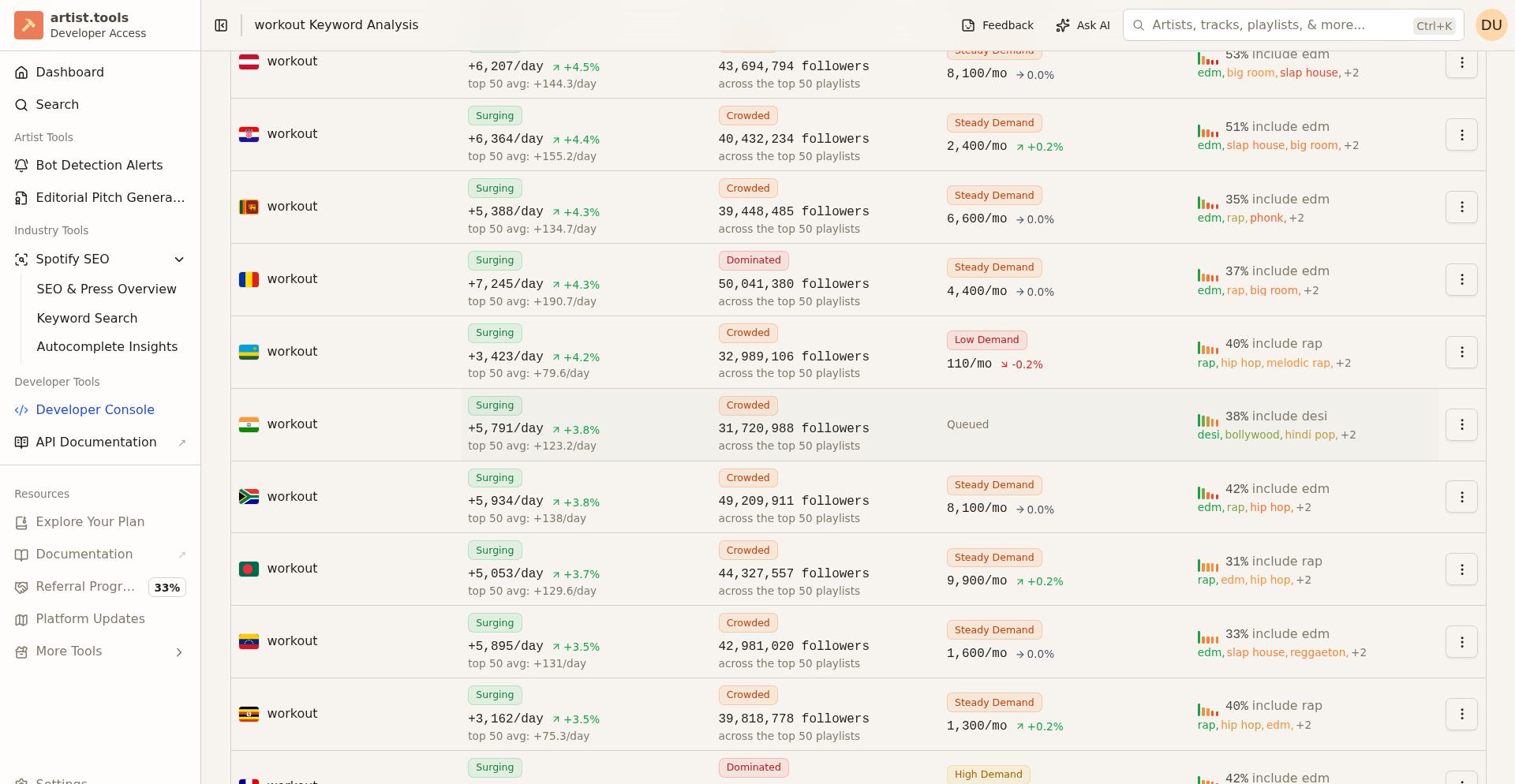
The Metrics view shows:
Competition badge: Easy, Moderate, Crowded, or Dominated — how hard it is to rank
Momentum badge: Breakout, Surging, Steady Growth, Stable Base, or Declining — growth trend
Demand badge: Huge Demand, High Demand, Steady Demand, or Low Demand — search interest
Follower Growth Per Day: Average growth across top 50 playlists
Google Search Volume: Monthly Google searches for this term
Follower Reach: Combined followers of top 50 ranking playlists
For detailed explanations of each badge, see Keyword Search.
Use Similar Keywords
Switch to Similar Keywords when you want to compare related opportunities instead of staying on one term. This is useful when:
The main keyword has
Dominatedcompetition and you need alternativesYou want to build a keyword cluster around a theme
You're exploring related moods or sub-genres
Use Content Analysis
Content Analysis helps you understand how the top ranking playlists for a keyword overlap with each other. Instead of checking playlists one at a time, you can use this view to review shared patterns across the ranking set.
Open a keyword page.
Stay on the Playlists tab.
Click Content Analysis.
The Content Analysis tab includes Track Overlaps, which highlights tracks that appear in at least two of the top ranking playlists for that keyword. This helps you spot repeat songs and understand which tracks are clustered around a search term across the current ranking landscape.
The analysis view also supports text analysis scopes for all, words, and phrases. Use these views to study how playlist language is repeated or varied across the top results for a keyword.
Troubleshooting
I see "Invalid Keyword" or "No keyword provided"
Check that the URL includes both a keyword and a market. If you are entering the URL manually, make sure the keyword is formatted correctly.
The page shows an Error card
Reload the page and try again. If the problem continues, note the full URL and contact support with a screenshot.
I do not see Content Analysis
Make sure you are on the Playlists tab of the Keyword Page. Content Analysis is a child tab inside that section, not a top-level page tab.
Genre Alignment shows "Missing" for many genres
This means the playlist's curation doesn't match the genres people are searching for when they use this keyword. Consider whether this keyword is the right target for your playlist, or whether you should adjust your curation.
What to do next
Use the Playlist SEO tab to connect keyword research to playlist optimization
Review Press Mentions if you also want off-platform context for related entities
Return to Keyword Search to discover more keywords