Keyword Search
Keyword Search helps you discover high-growth, low-competition keywords to optimize your Spotify playlists for search. By targeting the right keywords in your playlist titles and descriptions, you can drive organic follower growth—the only sustainable growth strategy for playlists on Spotify.
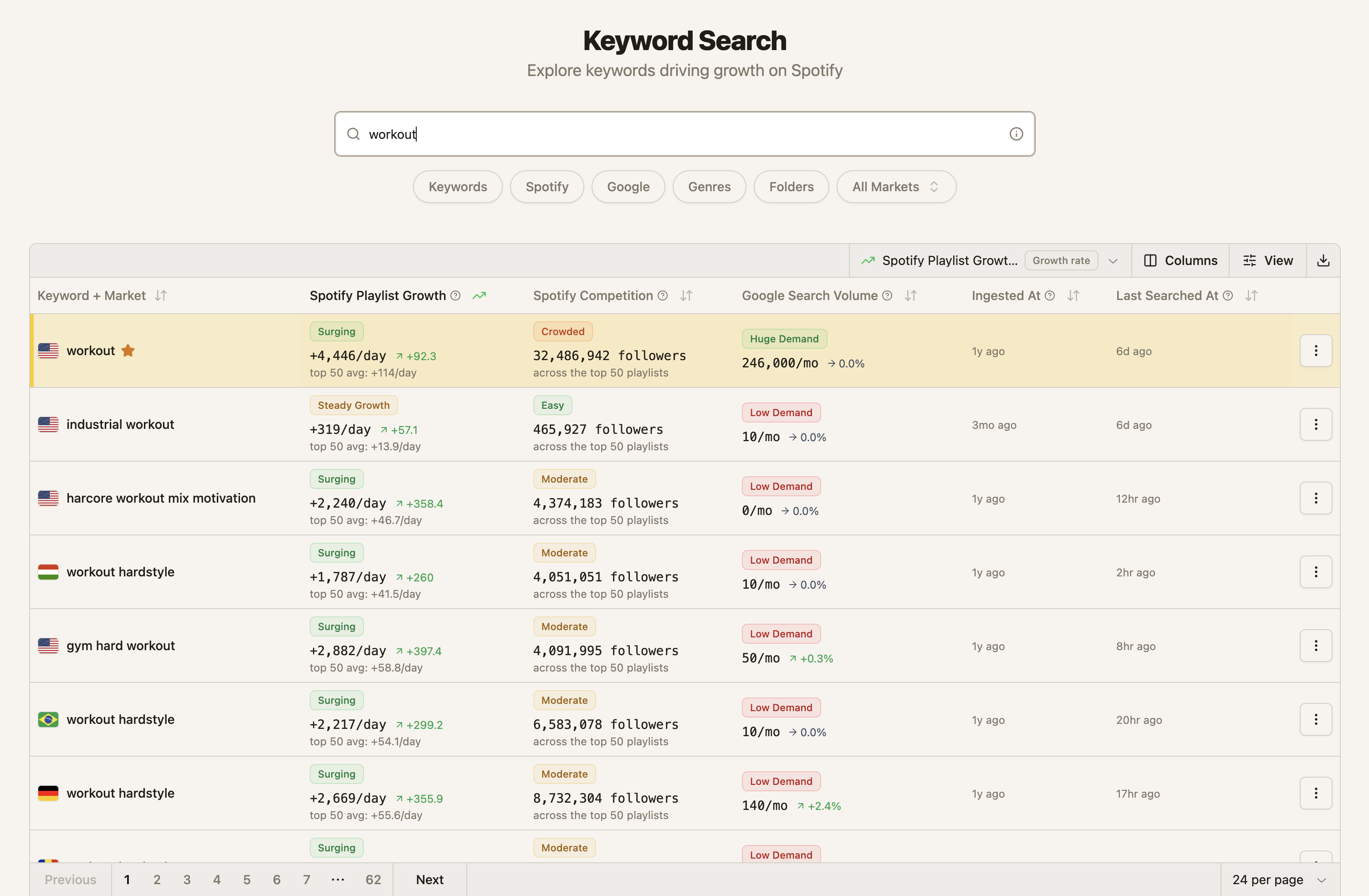
Access Keyword Search
Log in to your dashboard at app.artist.tools
Navigate to Spotify SEO > Keyword Search in the sidebar, or visit app.artist.tools/seo/research directly
Search for keywords
1. Enter your search term
In the search bar (labeled "Search keywords..."), type a keyword related to your playlist's genre, mood, or theme
Examples: "lofi beats," "workout music," "indie rock"
Press Enter or click the search button
Expected result: A table of keyword results appears, showing badges for Competition, Momentum, and Demand along with detailed metrics.
2. Apply filters to refine results
Use the filter panel to narrow down keywords based on specific criteria:
Available filters include:
Country: Choose a market (defaults to "all") to see region-specific data
Spotify Playlist Growth: Filter by Momentum badges —
Breakout,Surging,Steady Growth,Stable Base,Declining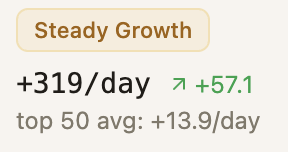
Spotify Competition: Filter by Competition badges —
Easy,Moderate,Crowded,Dominated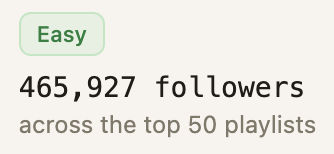
Google Search Volume: Filter by Demand badges —
Huge Demand,High Demand,Steady Demand,Low Demand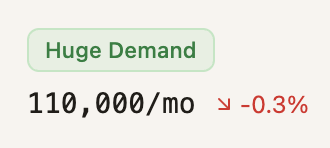
Top Spotify Genres: Select specific genres from the dropdown to find keywords curating those genres
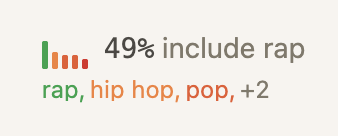
Expected result: The keyword table updates to show only results matching your filter criteria.
Understand keyword metrics
The Keyword Search table shows several key metrics to help you evaluate opportunities:
Badge columns
The three badge columns give you an at-a-glance assessment of each keyword:
Spotify Playlist Growth (Momentum): Shows whether playlists ranking for this keyword are growing or declining
Spotify Competition: Shows how difficult it is to rank for this keyword
Google Search Volume (Demand): Shows the overall search interest for this term on Google
Momentum badges
Momentum indicates the growth trend of playlists ranking for this keyword:
Breakout: Rapid acceleration — playlists are gaining followers quickly
Surging: Strong upward growth — consistent positive momentum
Steady Growth: Moderate, reliable growth over time
Stable Base: Flat — neither growing nor declining significantly
Declining: Decreasing interest — playlists are losing followers
Competition badges
Competition indicates how hard it is to break into the top rankings:
Easy: Low competition — most top playlists have small follower counts. Good opportunity for new or smaller playlists.
Moderate: Balanced opportunity and difficulty — mix of small and medium-sized playlists competing.
Crowded: Many playlists competing for this keyword — harder to break into top positions.
Dominated: Top positions held by large, established playlists with 200K+ followers. Very difficult to rank.
Demand badges
Demand indicates the overall search interest for this term:
Huge Demand: Highest search interest — many people searching for this term
High Demand: Strong search interest — solid potential traffic
Steady Demand: Moderate, consistent searches — reliable but limited
Low Demand: Limited search interest — niche or declining term
Additional metrics
Keyword: The search term people use to find playlists on Spotify
Follower Growth Per Day: Average daily follower growth across top 50 playlists ranking for this keyword — higher values indicate more opportunity
Google Search Volume: Monthly Google searches for this term, indicating overall search demand
Follower Reach: Total follower count of the top 50 playlists — higher numbers suggest more competition
Top Spotify Genres: Primary genres curated by playlists ranking for this keyword
Analyze keyword opportunities
View detailed keyword data
Click on any keyword row in the results table
You'll navigate to the keyword detail page at
/seo/keyword/[keyword]/[market]
Expected result: The keyword detail page shows the top 50 playlists currently ranking for that keyword, along with trend charts and similar keyword suggestions. For more details, see How to use the Keyword Page.
Evaluate competition using badges
The Competition badge gives you an instant read on difficulty, but for deeper analysis:
Check the Competition badge for a quick assessment
Click through to the keyword detail page to see the top 10 playlists
Look at their follower counts to validate the badge:
Easy— Most playlists under 50K followersModerate— Mix of playlists between 50K-200K followersCrowded— Several playlists over 100K followersDominated— Multiple playlists over 200K followers
Compare with the Momentum badge to find growing niches with manageable competition
Think beyond exact keyword matching
Spotify's search systems do not rely only on exact words in your title and description. Our research suggests they also use semantic matching, which means the natural language and related phrases around your keyword matter. When you choose a keyword, consider how well your playlist's actual curation reflects the broader intent behind that search — the mood, genre, and track style listeners expect. A keyword with perfect competition and momentum metrics will still underperform if your playlist's content mismatches what the algorithm has learned people want when they type that term. Use the Keyword Page and its Content Analysis tab to verify your curation aligns with the tracks and phrases that top-ranking playlists share.
Save keywords for tracking
Bookmark important keywords
In the Keyword Search table or on a keyword detail page, click the ⭐ star icon next to the keyword you want to save
A confirmation toast appears: "Keyword saved"
Expected result: The keyword is added to your saved keywords list and appears highlighted across the site, including at the top of the Keyword table on your Playlist SEO tabs.
To view and manage your saved keywords, see How to manage My Keywords.
Export keyword data
From the Keyword Search results table, click the Export as CSV button in the table actions menu
A CSV file downloads with all visible columns from the current page
Common workflows
Finding niche opportunities
Start with a broad genre keyword (e.g., "rap")
Set Competition filter to
EasyorModerateSet Momentum filter to
BreakoutorSurgingSort results by Follower Growth Per Day (descending) to find the fastest-growing opportunities
Click through promising keywords to validate the top 10 playlists
Save 3-5 keywords that match your playlist's curation and have manageable competition
Validating your current playlist keywords
Search for the primary keyword in your playlist title
Check the Demand badge — does it show
High DemandorHuge Demand?Check the Competition badge — is it realistic for your playlist size?
Review the genres of top-ranking playlists — do they match your curation?
If your keyword has low demand or mismatched genres, search for related terms with better metrics
Troubleshooting
Issue
Likely Cause
Solution
"No keyword data found"
The keyword has very low search volume or isn't tracked in our database
Try broader search terms or check spelling. Search for related keywords with data.
Search takes 30-60 seconds
Large dataset being queried with complex filters
This is normal. Wait for the loading skeleton to complete. Consider narrowing your filters.
Saved keywords not appearing
Sync issue or browser cache problem
Refresh the page or check your saved keywords at app.artist.tools/seo under the Saved Keywords tab.
"Queued" badge on metrics
Data is being fetched from Spotify and Google APIs
Metrics update every 10-24 hours. Check back within 24 hours for updated data.
Export fails with "too large" error
Trying to export more than 10,000 rows
Reduce your page size or apply filters to export smaller datasets.
"Unlock Spotify Search Insights" overlay
You're on a free or Artist Access plan
Upgrade to Industry Access to unlock the full keyword metrics and badge system.
Limitations
Data freshness: Keyword metrics update every 10-24 hours. Real-time data is not available.
Search limitations: Supports exact match searches only (no regex or advanced operators). Maximum 50 results per page.
Market availability: Some smaller markets may have limited data or longer update cycles (up to 8 days).
Saved keyword limit: Industry plan users can save up to 100 keywords. Higher plans may have increased limits.
What's next
After finding promising keywords:
Analyze individual keywords to see detailed rankings, Position History, and Genre Alignment
Organize your saved keywords for ongoing tracking
Optimize your playlists using your researched keywords in titles and descriptions
Learn how Spotify Search works to understand why keyword selection, curation match, and engagement matter for ranking
Getting help
If you encounter issues with Keyword Search:
Take note of the specific keyword you searched and any error messages
Check if the issue persists with different keywords or markets
Include screenshots of the results table or error states when contacting support