Playlist SEO tab
The Playlist SEO tab shows you where your playlist appears in Spotify search results, how it ranks in Google, and which external websites link to it. Use this tab to track keyword performance, identify optimization opportunities, and monitor your playlist's search visibility both inside Spotify and across the web.
Access the Playlist SEO tab
Navigate to your Dashboard
Click on a tracked playlist to open its detail page (
/playlist/[id])In the left sidebar (or mobile bottom nav), select the SEO tab (icon: Target)
Expected result: The SEO tab loads showing four sub-tabs: Spotify Rankings, Google Rankings, Opportunities, and Guides.
Understanding the SEO tab layout
The Playlist SEO tab is organized into four main sections:
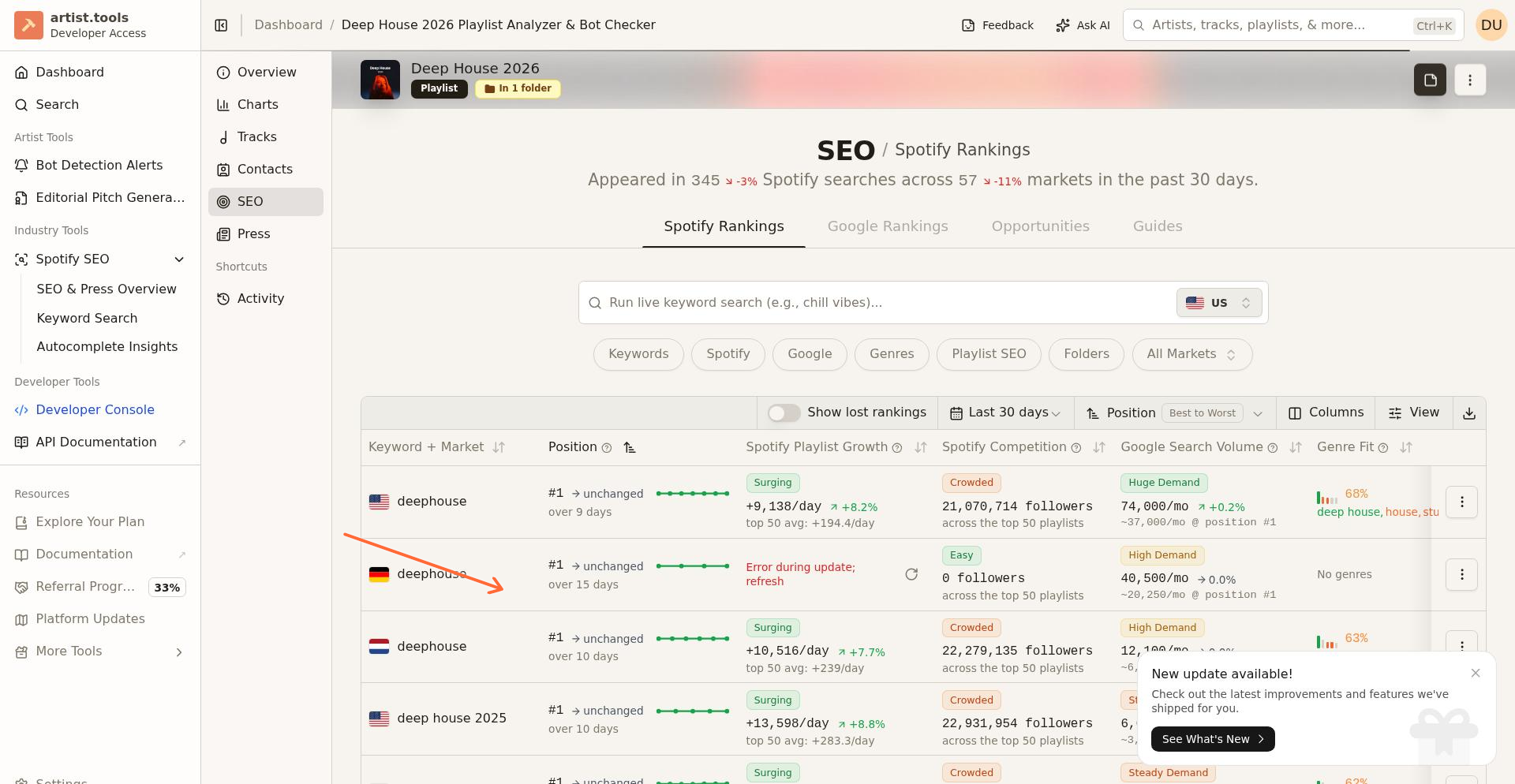
Spotify Rankings: Track where your playlist appears in Spotify's internal search results, with keyword rankings, position history sparklines, and genre fit data
Google Rankings: See which search terms your playlist ranks for in Google search results, including estimated monthly search volume and position history
Opportunities: Discover keyword gaps and optimization suggestions
Guides: Access SEO best practices and educational content
View Spotify keyword rankings
Keyword Rankings table
The table displays:
Keyword: Search terms your playlist currently ranks for (saved keywords appear first with ⭐)
Position: Your playlist's ranking (1-50) in Spotify search for that keyword, with a sparkline showing position history
Genre Fit: Percentage showing how well your playlist's genres match the keyword's genre demand
Market: Country where this ranking applies
Discovered At: When the platform first detected your playlist ranking for this keyword
Last Updated: When the ranking data was last refreshed
Understanding Position History sparklines
The Position column includes a color-coded sparkline showing your recent ranking movement:
Green (positions 1-10): Top-tier rankings — your playlist appears near the top of search results
Yellow-green (positions 11-20): Strong rankings — still visible on the first page of results
Orange (positions 21-35): Weakening — your playlist is slipping in visibility
Red (positions 35+): Weak — your playlist ranks near the bottom of tracked results
Understanding Genre Fit
Genre Fit measures how well your playlist's curation matches the genre demand of this keyword. The percentage shows how much of the keyword's genre demand your playlist satisfies:
High fit (e.g., 85%+): Your playlist curates the genres people are searching for — good alignment
Medium fit (e.g., 50-84%): Partial match — you have some relevant genres but may be missing key ones
Low fit (e.g., below 50%): Genre mismatch — your playlist may be ranking but isn't well-aligned with the typical search intent for this keyword
Identify your priority keywords
Look for keywords with the ⭐ indicator at the top of the table—these are your saved keywords from your Saved Keywords.
Review their current positions and Genre Fit percentages
Note which keywords you're ranking well for (positions 1-10, green sparklines) and which need improvement (positions 11-50)
Sort and filter rankings
Click any column header to sort (e.g., sort by Position to see your best rankings first)
Use market filters (if available) to view rankings for specific countries
Use search to find specific keywords quickly
Track ranking changes over time
Search Positions chart
The chart shows:
Historical position data for tracked keywords
Trend lines indicating whether rankings are improving (moving toward position 1) or declining
Time-based correlations with playlist changes (new tracks, title updates, description edits)
How to use it:
Select a keyword from the dropdown above the chart
Review the trend line over the past 30-90 days
Correlate ranking changes with actions you took (e.g., "Ranking improved after adding keyword to description on X date")
Implement optimization recommendations
Review optimization tips
The Optimization Tips section provides specific, actionable advice based on your playlist's current state:
Keyword suggestions: "Add [keyword] to your description for better visibility"
Title optimization: "Consider including [high-volume keyword] in your playlist title"
Genre fit improvements: "Your top keywords suggest focusing on [genre]—ensure your curation matches"
Competition guidance: Use the Competition badges from Keyword Search to find keywords where you can realistically compete
Apply keywords to your playlist
To optimize based on recommendations:
Open Spotify in a new tab
Navigate to your playlist and click Edit details (three-dot menu > Edit details)
Update your playlist based on SEO insights:
Title: Include 1-2 primary keywords (keep it natural and engaging)
Description: Add 5-7 related keywords naturally in 2-3 sentences
Cover art text: Feature your main keyword if using custom cover art
Save changes in Spotify
Return to artist.tools and wait 24-48 hours for rankings to update
Example optimization
Before:
Title: "My Chill Playlist"
Description: "Songs I like to chill to"
After (optimized with keywords: "chill vibes," "relaxing music," "study music"):
Title: "Chill Vibes – Relaxing Music for Study & Focus"
Description: "The perfect chill vibes playlist for studying, working, or unwinding. Featuring relaxing music and acoustic study music to help you focus and de-stress."
Monitor search visibility metrics
Key performance indicators
Track these metrics to measure SEO success:
Number of ranking keywords: How many keywords your playlist appears for (goal: 10-20+)
Top 10 positions: How many keywords you rank in positions 1-10 (higher is better)
Green sparklines: How many keywords show stable or improving top-10 rankings
Saved keyword performance: Average position for your priority (⭐) keywords
High Genre Fit keywords: Keywords where your Genre Fit is 80%+ — these are your best targets
Understand data refresh cycles
How often data updates
Keyword rankings: Update every 2-3 days for major markets (US, UK, CA)
Smaller markets: May take up to 8 days to refresh
New keywords: Appear within 24-48 hours after your playlist starts ranking
If you see "No rankings found":
Your playlist may not be ranking for any tracked keywords yet
Data may be queued (check back within 24 hours)
Your playlist title/description may need optimization to target specific keywords
Compare with competitor playlists
Benchmark your performance
Click on a keyword in your Rankings table
You'll navigate to the Keyword Page showing the top 50 playlists
Find your playlist in the list and compare:
Follower count relative to competitors
Genre Fit with top-ranking playlists
Curation strategies of playlists ranking above you
Return to your Playlist SEO tab and adjust your strategy based on insights
What to look for:
Are top-ranking playlists using specific keywords in their titles?
What's the average follower count at position 1-5 vs. your position?
Do top playlists have higher Genre Fit scores? What genres are they including that you're missing?
Advanced optimization strategies
Build a keyword cluster
Identify 1 primary keyword (highest search volume, core theme, high Genre Fit)
Find 3-5 related secondary keywords using Keyword Search
Use the Competition and Momentum badges to find keywords with
EasyorModeratecompetition andBreakoutorSurgingmomentumInclude all keywords naturally across:
Playlist title (1-2 keywords)
Description (3-5 keywords)
Cover art text (1 primary keyword)
Monitor which keywords drive the most follower growth in your Rankings table
Double down on high-performing keywords in future playlists
Market-specific optimization
If you notice your playlist ranks well in specific countries:
Check the Rankings table for market data
Research market-specific keywords using Keyword Page > Similar Keywords > Other Markets
Create region-specific playlist descriptions (e.g., "Best chill vibes for UK listeners")
Track performance in your target markets
Troubleshooting
Issue | Likely Cause | Solution |
|---|---|---|
"No keyword rankings found" | Playlist not optimized for any keywords or data still loading | Add keywords to your title/description in Spotify. Wait 24-48 hours for data to populate. |
Saved keywords not appearing at top of table | Keywords saved after table loaded, or sync issue | Refresh the playlist page or switch tabs and return to SEO. |
Rankings show "8 days ago" update | Smaller market with slower refresh cycles | This is normal for low-volume markets. Major markets (US, UK) update every 2-3 days. |
Position dropped suddenly | Competitors gained followers or Spotify algorithm change | Review competitor playlists on the Keyword Page. Improve your playlist quality and promotion. |
Can't edit playlist details | This tab is read-only—edits happen in Spotify | Open Spotify, find your playlist, and use Edit details. Changes sync back to artist.tools automatically. |
Genre Fit is low for my main keywords | Your curation doesn't match the genres people search for with this keyword | Either target different keywords that match your curation, or adjust your track selection to include more of the missing genres. |
Limitations
Read-only view: You cannot edit playlist metadata directly in artist.tools—all changes happen in Spotify
Ranking positions 51+: Only the top 50 positions are tracked—lower rankings not visible
Data delay: 24-48 hour lag between Spotify changes and ranking updates
Market coverage: Smaller markets may have incomplete or delayed data
No bulk actions: Cannot optimize multiple playlists at once—must review each individually
What's next
Keyword Search — Discover new keywords with Competition, Momentum, and Demand badges
Keyword Page — Analyze individual keywords and competitor playlists
Saved Keywords — Manage your tracked keywords
Understanding the Spotify Search Algorithm — Learn how Spotify uses engagement signals and semantic matching to rank playlists
Getting help
When reporting SEO tab issues:
Provide the playlist URL or ID
Note which keywords are affected
Include screenshots of the Rankings table and any error messages
Specify the market(s) you're tracking
Mention the last time you updated your playlist in Spotify